Running SQL Agent
SQL Agent is a .NET application written in a combination of C# and DBL and supported on Windows and Linux systems. It monitors the Kafka CDC topic for messages indicating that data has changed and replicates those changes to a SQL Server database, usually on the same system that is running the agent, which will usually not be the system or record.
When the agent is first started and one or more tables are missing from the database, it checks for the latest snapshot and applies it to the database, then begins to replay data change messages from the point in time when the snapshot was taken to the current time. Once that process is complete, the agent begins replicating change messages as they are received.
If no previous snapshot exists, the agent will request that a new snapshot be created, wait for that snapshot to become available, apply it to the database, and then begin replicating as previously described.
Three options on the LaunchPad Agent's menu allow you to control and interact with the ISAM Agent.
Starting the SQL Agent
The Start SQL Agent option (Ctrl+S) can be used to launch an instance of the SQL agent on your local machine.
Before startin the agent LaunchPad checks that the Kafka server specified in the currently selected profile is available.
The agent is started as a background process, and when it's running, its process ID is displayed in the window footer along with the HTTPS port number where its browser UI can be accessed.
The agent's console window is hooked and messages are captured and displayed in the SQL Agent log towards the top of the screen. A context menu associated with that log display can be used to perform various operations, such as copying messages to the clipboard and clearing the log display.
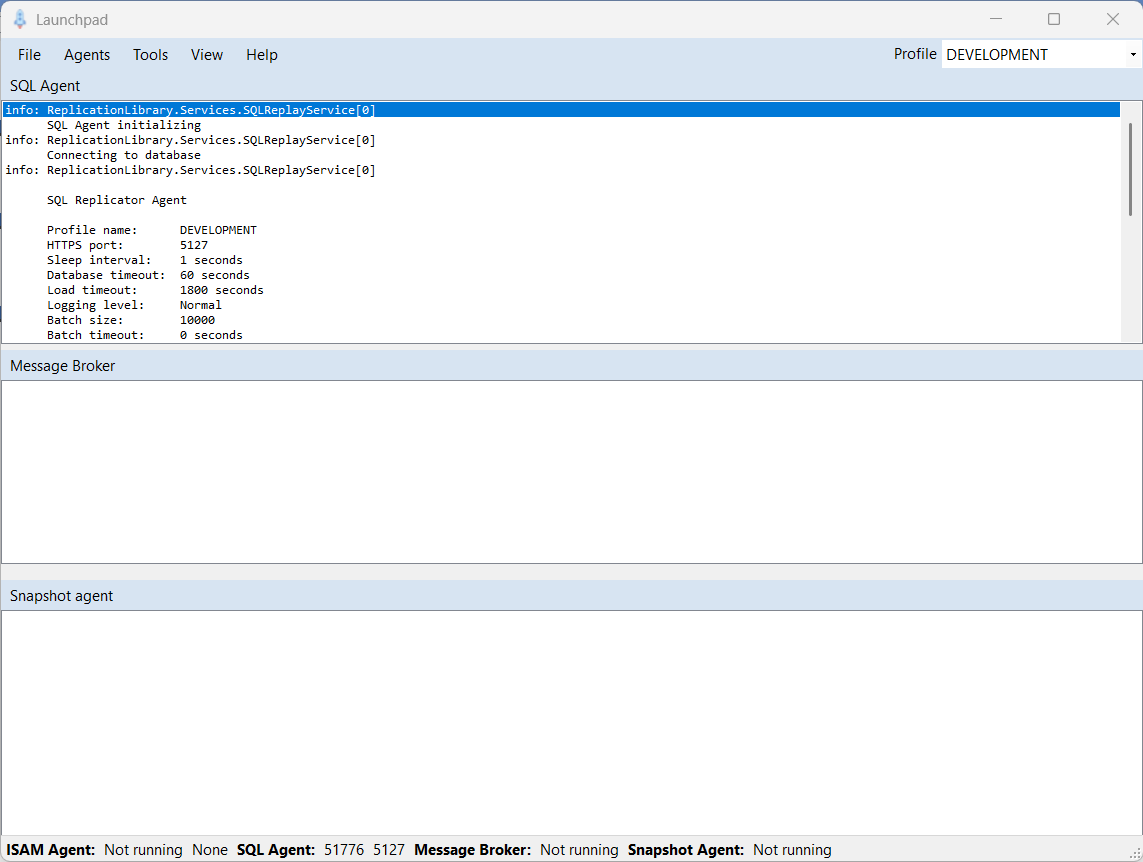
When the agent is running, the menu option used to start the agent changes to one that can be used to stop the agent, and two additional menu options become available.
Viewing the SQL Agent Web Console
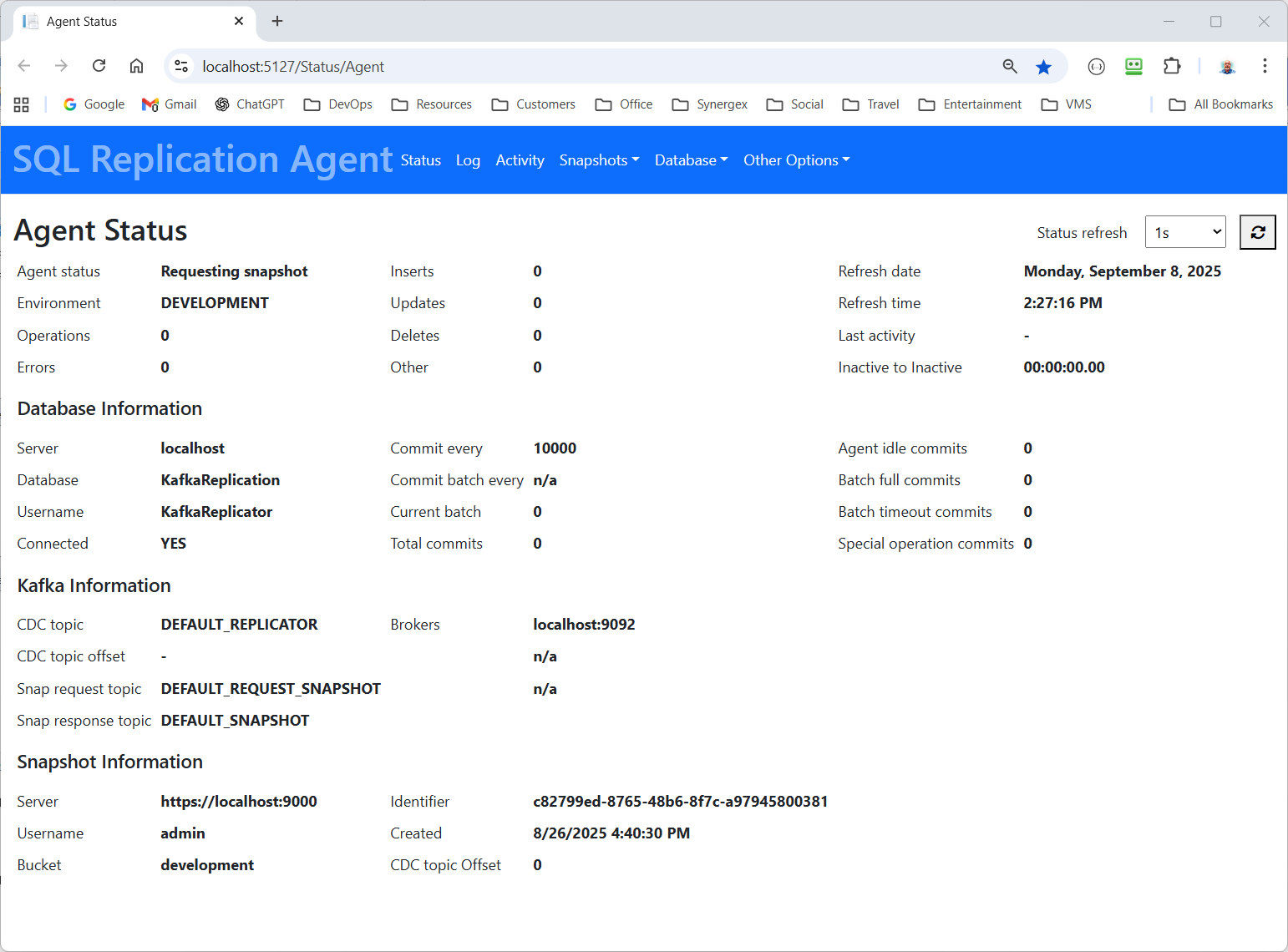
When the agent is running, the SQL Agent UI menu option (Ctrl+Shift+S) or the agent console context menu can be used to view the agent's admin UI in a web browser.
When you open the UI in this way, LaunchPad reads the necessary admin password from the agents local database and automatically authenticates with the asmin UI.
Viewing the SQL Agent API Documentation
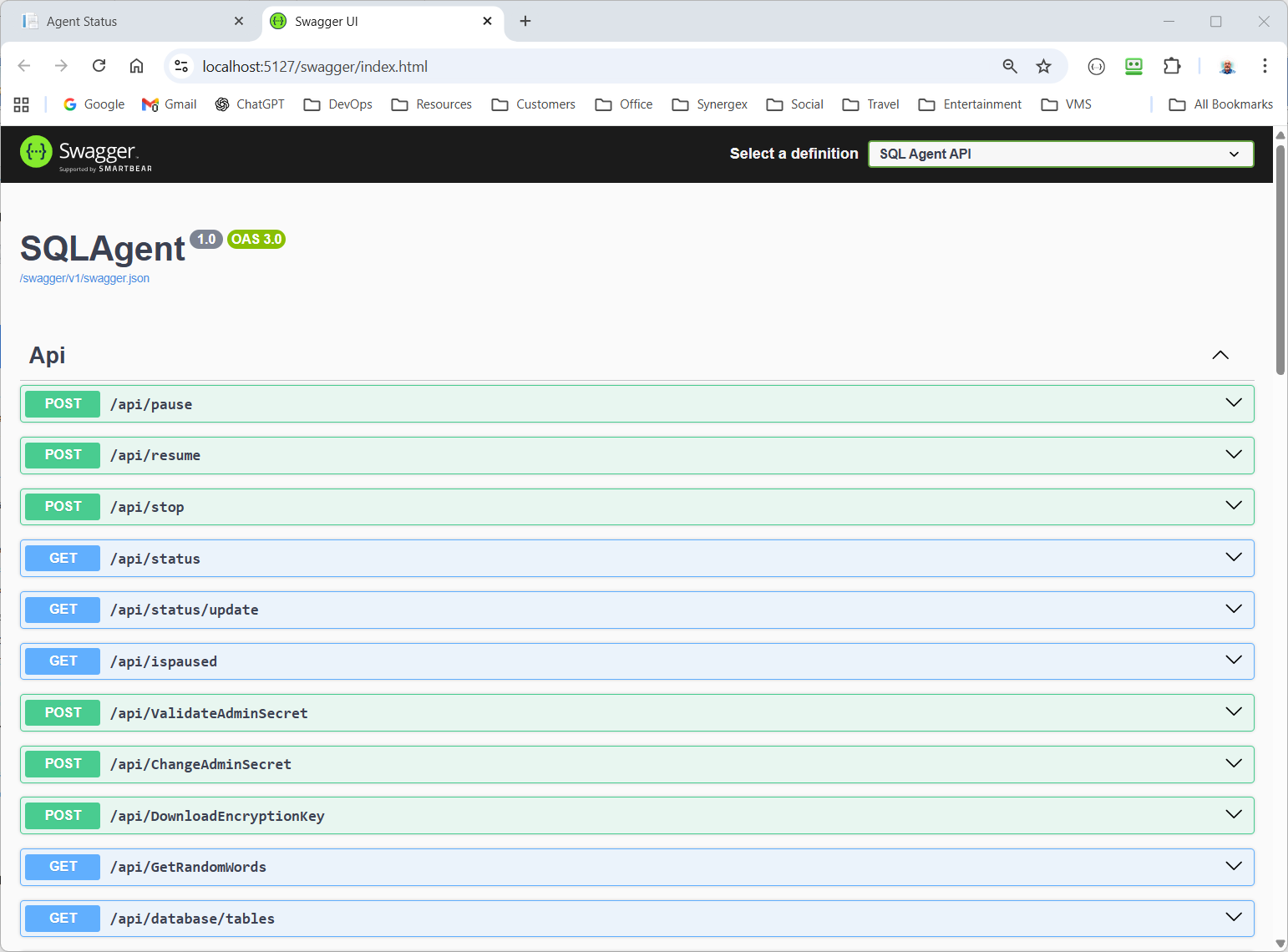
When the agent is running, the SQL Agent API Docs menu option (Ctrl+Alt+S) or the agent console context menu can be used to view and interact with the agent's API docs in a web browser.